> For the complete documentation index, see [llms.txt](https://curtis-holt.gitbook.io/curtis-holt-docs/llms.txt). Markdown versions of documentation pages are available by appending `.md` to page URLs; this page is available as [Markdown](https://curtis-holt.gitbook.io/curtis-holt-docs/knowledge-base/blender-projects/by-gen/creating-content-packs-including-from-asset-libraries.md).
# Creating Content Packs (Including From Asset Libraries)
This page describes how to convert traditional asset libraries (containing geometry nodes content) into content packs compatible with BY-GEN V10+.
A few conditions have to be met for an asset library to be understood by BY-GEN. They are described below.
### Step 1 - Uniform Folder and Naming Convention
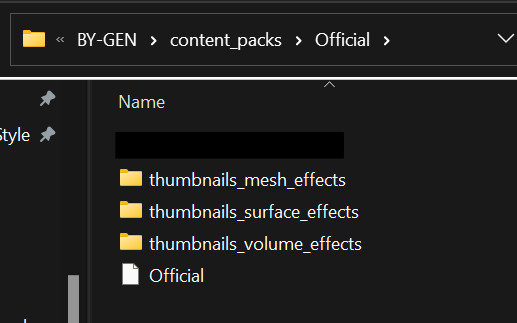
Your asset library needs to exist within its own self-contained folder. For example, the standard content pack that comes with BY-GEN is called 'Official'. Inside of the 'content\_packs' folder in the root directory of the addon, you will see the 'Official' folder. Inside of this folder is 'Official.blend'.
Therefore, if your content pack was called 'MyContent', you would need to create a folder called 'MyContent' which includes a blend file containing your assets named 'MyContent.blend'.
{% hint style="info" %}
Note:
* The 'Official' file in the image is a .blend file. There is no Blender icon for the file, as the file format has not been associated with Blender on the computer taking the screenshot.
* Asset library folders will likely have one or two additional text files in the folder describing the arrangement of categories in the asset browser. Do not worry that there are no text files in the example image provided.
* Ignore the black bar, it is just hiding a development folder that is not relevant to the creation of content packs.
* Pay attention to how we are looking inside of a folder called 'Official' which is itself inside of the content\_packs folder in the addon directory.
{% endhint %}
**Where is the location of 'content\_packs'?**
If you are unsure of where to place new content packs, take a look at the [Blender documentation](https://docs.blender.org/manual/en/latest/advanced/blender_directory_layout.html) to see where local files are stored on your computer. Usually it will be at the following locations:
```
Linux:
$HOME/.config/blender/5.0/scripts/addons/BY-GEN/content_packs
macOS:
/Users/$USER/Library/Application Support/Blender/5.0/scripts/addons/BY-GEN/content_packs
Windows:
%USERPROFILE%\AppData\Roaming\Blender Foundation\Blender\5.0\scripts\addons\BY-GEN\content_packs
```
Alternatively, in the BY-GEN interface, under the 'Settings' panel, click the 'Local Content Packs' button to automatically open the content\_packs folder:
### Step 2 - Give the Geometry Nodes Trees a Proper Prefix
The names of the geometry nodes effect are extremely important for BY-GEN to understand what method should be used to apply them to the user's selected object/s.
For most cases, the '(S)' prefix is appropriate, as this represents the 'Simple' method, which simply imports a single node tree from the content pack file, creates a geometry nodes modifier on the object, and assigns the imported node tree.
Therefore, if your geometry nodes tree is named 'My Effect', you should rename it to '(S) My Effect'.
There are other import methods available, represented by alternative prefixes, but they will not be described here.
### Step 3 - Flagging Content Via Thumbnails
Instead of directly reading content inside of the blend file, BY-GEN will look for folders that exist \*inside\* of the content pack folder (consequently, next to the content pack .blend file), which have very specific names. These are:
* thumbnails\_surface\_effects
* thumbnails\_mesh\_effects
* thumbnails\_volume\_effects
You will notice that these reflect the main pillars of content in BY-GEN, where each of the categories has a drop-down list within the user interface in the 3D view.
For each of the effects (geometry nodes trees) you want to make available to the user, you must create an associated thumbnail and place it in one of these folders. As you may have figured out, if you wanted an effect to appear in the 'Surface Effects' category, you must create a thumbnail for it inside of the 'thumbnails\_surface\_effects' folder.
{% hint style="danger" %}
**But wait! How does BY-GEN know which geometry nodes tree to associate with each thumbnail?**\
The names of the thumbnail images you create **MUST** be identical to the name of the geometry nodes tree you want the user to import.
{% endhint %}
Let's back up for a second to explain this:
If your content pack is named '*MyContent*', you must have a file named '*MyContent.blend*'. \
If that file has a geometry nodes tree called '*(S) My Effect*' (following the prefix naming convention), you must create a thumbnail named '*(S) My Effect.jpg*' (or whatever image file format you choose to use).
If you are unsure what image file format to use for your thumbnails, keep it simple:
* JPG if you don't need the thumbnail to have a transparent background.
* PNG if you need your thumbnail to have a transparent background.
{% hint style="warning" %}
In fact, I'm not even sure if the BY-GEN effect selection supports transparent backgrounds, so I will need to test that. You're getting documentation hot off the press, folks. 😅
{% endhint %}
### Step 4 - (Optional) Associate Objects to Effects
This step is optional (depending on the import method) but highly recommended. For the sake of simplicity, you will likely be rendering thumbnails for your effects from *within* your content pack file.
I tend to have a template object in the scene for each effect, which I can enable and disable on demand to re-render thumbnails. This saves me from having to re-assign geometry nodes trees to the object every time I want to make a change. I also create collections which clearly identify which effects are for the Surface, Mesh and Volume categories.
This inner-file organization is not necessary for BY-GEN to find the content, however it is good organizational practice.
However, despite this step being listed as 'optional', it is **necessary** to have a template object if you are using a more advanced import method, such as (Ts) or (Tr), as BY-GEN will import this object prior to reassigning object targets.
This is another reason why I believe it is good practice to have a unique object in your content pack file for each effect. If you wanted to expand into more advanced workflows in the future, it is more convenient.
### Step 5 - Test the Content
If you had Blender open during the entire process of creating new content pack files in the addon. Firstly, you are brave - well done you (it's always a good idea to close Blender and restart *after* changes have been made). Secondly, I have implemented a 'refresh' operation which is visible in the interface. This can be seen to the right of the content pack drop-down menu, indicated by the double-arrow icon:
Pressing this icon *should* refresh the addon's properties relating to content packs, therefore detecting the newly created content. However, as a matter of principle, I recommend closing and restarting Blender after making changes to the addon file-space.
If you have been successful, your content pack should be visible in the drop-down list, and likewise: your thumbnails should be selectable in the effects list.
{% hint style="danger" %}
**Hold on Curtis, I could see the thumbnail for my effect, but when I tried to apply it, I got an error. What's wrong?**
Double.
Triple.
Quadruple check the names.
The number one cause of node tree detection issues in BY-GEN is the accidental mis-naming of content. It's very easy to accidentally have a capital letter in a thumbnail that isn't present in the actual node tree name. The same also applies to the name of the content pack folder compared to the name of the content pack blend file. You **must** be thorough with checking the names.
{% endhint %}
Hopefully, you can now access your content, but if you are certain that you have done everything correctly and the content is either:
* Not visible.
* (Or) Not importing correctly.
Then it may be due to a directory string issue. If your content pack name (or path to the content pack) contains unique characters (even including '.' periods), then please start by trying to simplify the naming to just simple characters and underscores.
If you are still having issues, consider getting into contact via my contact page or (perhaps more usefully) our community Discord server.